
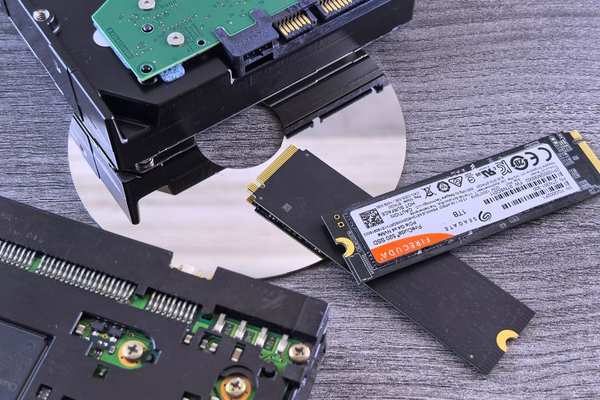
Choosing between an SSD and an HDD can make a bigger difference to how a laptop feels than many buyers expect. Two machines may have similar processors and RAM, yet the one using solid-state storage can feel quicker when starting Windows and opening apps. A traditional hard drive still offers plenty of capacity for the money.
So, when comparing SSD vs HDD for laptop use, the best choice depends on how much you value speed, storage space, portability and price.
How SSD and HDD storage differ
An SSD, or solid-state drive, stores data in flash memory and has no moving mechanical parts. An HDD, or hard disk drive, stores data magnetically on spinning platters and uses a moving read/write head. Both can hold your operating system, applications and personal files, but they access that data differently.
That is why a laptop SSD usually responds faster. It can retrieve data electronically without waiting for a platter to rotate or a mechanical head to move into position. A laptop hard drive can still work well for bulk storage, but its mechanical design gives it higher access latency.
Which is faster in everyday laptop use?
Speed is the strongest reason to choose an SSD. Starting the laptop, launching a browser, opening office software, installing updates and loading projects all involve frequent storage access. SSDs handle these tasks much more efficiently than mechanical drives.
Imagine two otherwise similar laptops used for email, spreadsheets, video calls and web browsing. The HDD-based machine may have enough processor power for every task, yet still feel slow while Windows starts or apps load. The SSD-based machine generally reaches the same tasks sooner. An SSD does not make the CPU faster; it removes a common storage bottleneck.
SATA SSDs already offer a major improvement over typical HDDs, while NVMe SSDs connect through PCIe and can provide much higher throughput. For ordinary office or home use, the jump from HDD to SSD is often more noticeable than the jump from SATA SSD to a faster NVMe model.
Capacity and price: where HDD still wins
HDDs remain attractive because they generally cost less per gigabyte. If you need several terabytes for videos, RAW photos, archived projects or other large files, a hard drive can provide more storage for a limited budget.
For general productivity, a reasonably sized SSD is usually the better balance. A useful approach in any laptop storage guide is to keep Windows, applications and current projects on the SSD, then place large collections that do not need instant access on a secondary or external HDD. This gives you speed where you notice it most without paying for solid-state capacity you rarely use.
Reliability, shock resistance and noise
Laptops are carried and bumped more often than desktop PCs. Because an SSD has no spinning platters or moving read/write head, it is generally better suited to a mobile environment. HDDs can be more vulnerable to physical shock, especially while operating.
That does not make SSDs failure-proof. Flash memory has finite write endurance, controllers can fail and any drive can suffer data loss. HDDs can also last for years. The key advantage is that an SSD removes mechanical moving parts that create an additional risk in portable computers.
SSDs are also silent during normal storage operation. HDDs may produce faint spinning or seeking sounds, which can be noticeable in a quiet room.
Battery life and portability
Power use varies by drive model and workload, but SSDs are generally more power-efficient than mechanical HDDs because they do not need to keep platters spinning or move an actuator arm. That can help battery efficiency, although other components usually affect total runtime more.
Solid-state drives are also compact and lightweight. Many modern laptops use slim M.2 SSDs, which support thinner designs. Traditional 2.5-inch HDDs require more physical space and are increasingly uncommon in thin-and-light laptops.
Should you choose an SSD or HDD?
Choose an SSD for most everyday laptops
For a new laptop used for work, study, browsing, programming, photo editing or general home computing, an SSD is usually the best primary drive. It improves responsiveness, tolerates movement better and suits the compact design of modern laptops.
Choose an HDD when low-cost capacity matters most
An HDD still makes sense when the main requirement is inexpensive bulk storage and speed is secondary. It is particularly useful for external storage, backups and large media archives. A laptop with an HDD as its only system drive will usually feel slower in everyday use.
Use both when the laptop allows it
If your laptop supports two drives, an SSD for the operating system and active files plus a larger HDD for bulk storage can be cost-effective. If there is room for only one internal drive, an external HDD can provide the same archival role.
What to check before upgrading an older laptop
Before replacing a laptop hard drive, confirm the form factor and interface the machine supports. Some older laptops accept a 2.5-inch SATA drive, making a 2.5-inch SATA SSD a straightforward replacement. Newer models may use an M.2 slot, but M.2 refers to the physical format and does not automatically guarantee NVMe compatibility, so check the manufacturer’s specifications or service manual.
Also confirm that the storage is replaceable. Some thin laptops use soldered or proprietary storage. Back up important files before any upgrade, and decide whether you will reinstall or clone the operating system.
FAQ
Is an SSD better than an HDD for a laptop?
For most users, yes. An SSD usually provides faster startup and application loading, better resistance to bumps, quieter operation and lower power use. HDDs remain useful when high capacity at a lower cost per gigabyte is the main priority.
Does an SSD make a laptop faster?
An SSD does not increase CPU or graphics performance, but it can make the system feel much faster by reducing the time spent loading the operating system, apps and files. Upgrading an older HDD-based laptop to an SSD is often one of the most noticeable improvements you can make.
Is 256GB SSD better than 1TB HDD?
It depends on your needs. A 256GB SSD is far better for responsiveness, while a 1TB HDD provides four times the nominal storage capacity. If you mainly use cloud storage and everyday apps, the SSD may offer the better experience. If you store a large local media library, the HDD’s extra capacity may matter more.
Can a laptop use both SSD and HDD storage?
Some laptops can, provided they have the required connectors and physical space. If yours cannot, you can use an internal SSD for the operating system and an external HDD for backups or archive storage.
Which storage type offers the better overall value?
For a primary laptop drive, SSD is the better choice for most buyers. It improves everyday responsiveness and suits a device designed to be carried around. HDDs still earn their place when inexpensive capacity matters more than speed.
If you are deciding between ssd or hdd in two otherwise similar laptops, favour the SSD unless you genuinely need the HDD’s extra capacity. For most users, it delivers the more responsive and practical laptop experience.