
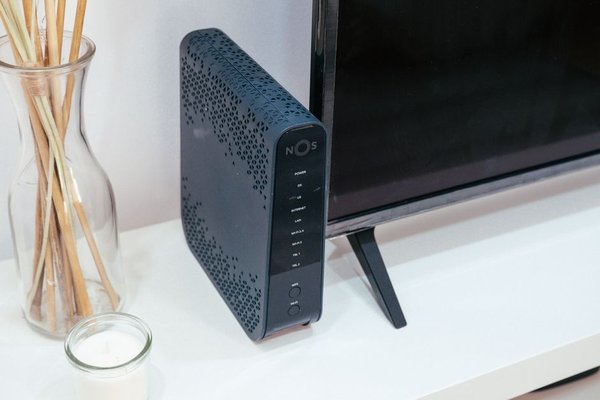
When a video buffers, a website crawls or a work call freezes, the obvious question is: why is my broadband slow? The frustrating part is that several different problems can produce identical symptoms. Your internet provider might be having trouble, your Wi-Fi might struggle to reach the bedroom, or a device could be downloading a huge update without you noticing.
Rather than changing settings at random, work out where the slowdown begins. A few comparisons can separate a fault outside your home from something happening on your own network.
First, identify what is actually slow
Check whether the problem affects every device or just one. If a laptop, phone and television all struggle, investigate the router, household traffic or broadband connection. If only your phone is slow, its signal, software or settings are more likely to be involved.
Notice whether the slowdown happens everywhere and throughout the day. A connection that works near the router but deteriorates upstairs points towards Wi-Fi coverage. An internet slowdown every evening may suggest home network congestion or heavier demand elsewhere, although timing alone cannot establish the cause.
Test broadband without letting Wi-Fi distort the result
Run an internet speed test close to your router, preferably using a computer connected by Ethernet. Pause large downloads, cloud backups and streaming first. Test several times, including when the connection feels normal and when it feels slow.
Compare measured speeds with the estimates and minimum guaranteed download speed in your broadband agreement. Remember that one speed test measures performance at a particular moment. An Ethernet result that is consistently healthy while distant Wi-Fi devices struggle strongly suggests a problem inside the home.
A guide to understanding broadband speed test results can help make sense of the figures. Download speed affects streaming and browsing, upload speed matters when sending files, and latency and stability are particularly relevant to gaming and calls.
Weak Wi-Fi and interference are common causes
Wi-Fi is a radio connection, not the broadband line itself. Thick walls, floors, metal cabinets and distance from the router can weaken the signal. Nearby wireless networks and some household equipment may also cause interference.
Move a struggling device closer to the router. Place the router somewhere open and reasonably central, rather than behind a television or inside a cupboard. If it offers separate bands, 5 GHz often performs better over shorter distances, while 2.4 GHz tends to reach farther but may be more congested. Actual performance depends on your equipment and home.
For stubborn dead zones, consider a well-positioned mesh system or wired access point. Before buying hardware, try improving Wi-Fi router placement in the rooms that matter most.
Home network congestion can be surprisingly hidden
Broadband capacity is shared across connected devices. A games console downloading an update, a laptop backing up photos and a television streaming in high resolution can compete for bandwidth. Upload-heavy tasks are easy to overlook because they can affect responsiveness even when you are not actively downloading.
Imagine a household where video calls become choppy at 7 pm. The router seems fine, but a console starts updating games when everyone gets home. Pause that download and repeat the call. If performance improves immediately, competing traffic is a better explanation than a damaged line.
Check active downloads and backups. Schedule large transfers outside busy hours where possible. Some routers offer traffic-priority settings, sometimes called quality of service, but these cannot create extra broadband capacity.
Sometimes the device is the problem
An older laptop, overloaded browser, outdated wireless adapter or busy phone can make a good connection feel poor. Test the same website on another device, close unused applications and restart the affected device. If you use a VPN, compare performance with and without it; its routing may contribute to the slowdown.
Keep supported software and router firmware updated. Avoid factory-resetting the router early in broadband troubleshooting: it can erase important settings without fixing the underlying problem.
When the broadband line or provider is responsible
If multiple devices are slow even over Ethernet, the cause may lie beyond your Wi-Fi. Possible slow internet causes include provider outages, network congestion, cabling faults or problems with the connection to your home. On some copper-based services, the line’s length and condition can restrict speed. Full fibre and cable systems have different technical limits.
Check your provider’s service-status page and consult the router manual to interpret warning lights. A normal restart can clear temporary glitches, but repeated dropouts or consistently poor wired speeds deserve investigation by your provider.
A simple broadband troubleshooting routine
Make three comparisons
First, compare two devices. Second, compare Wi-Fi beside the router with Wi-Fi in the problem room. Third, compare wireless results with an Ethernet test if possible. This identifies the likely bottleneck much more effectively than repeating tests on one phone.
Record what happens
Write down the dates, times, wired test results and any disconnections. Note whether the trouble followed a router move, new device or package change. A home network troubleshooting guide can help you organise the checks, while clear evidence gives your provider something concrete to investigate.
When should you contact your broadband provider?
Contact support if the connection drops regularly, wired speeds remain well below expectations or an announced fault does not clear. Ask the provider to test the line and explain whether the issue is in its network or your home setup. Do not attempt physical line repairs yourself.
In the UK, providers signed up to Ofcom’s voluntary broadband speeds codes give eligible customers a minimum speed guarantee. If a qualifying network speed problem is not resolved within 30 days, the codes provide a right to exit without an early termination charge. Check your provider’s participation and contract conditions before assuming this applies.
Frequently asked questions
Why is my broadband slow at night?
Several people streaming or downloading, crowded Wi-Fi channels or busy local networks can all contribute. Compare wired and wireless performance at different times before drawing conclusions.
Will restarting my router make the internet faster?
It may resolve temporary router issues, but cannot repair a line fault or increase the speed of your broadband package. If it helps only briefly, look for a recurring cause.
Why is my phone fast but my laptop slow?
The laptop may have a weaker wireless adapter, old drivers, background downloads or a VPN. Compare the two devices in the same room on the same network.
Does a faster broadband package fix poor Wi-Fi?
Not necessarily. More bandwidth will not remove a weak signal upstairs. Check wired performance and wireless coverage before paying for an upgrade.
Conclusion
Slow broadband becomes easier to tackle once you distinguish weak Wi-Fi, a busy device, shared household traffic and an incoming-line problem. Begin with device, location and Ethernet comparisons, change one thing at a time, and contact your provider if wired tests stay poor.