
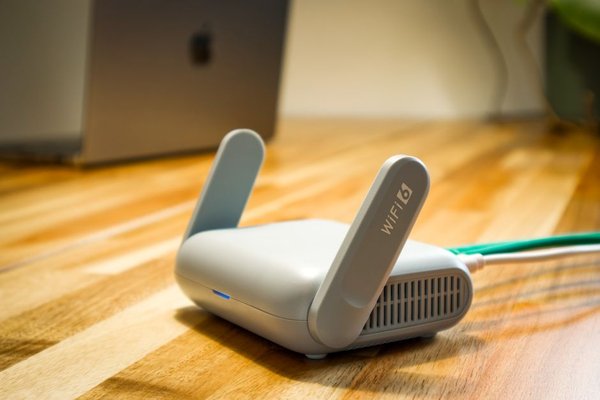
When friends visit, sharing your main Wi-Fi password seems harmless. But that password may also connect your laptops, security cameras, printer and other devices to the same home network. A guest Wi-Fi network gives visitors a different way online without automatically inviting them into that shared space.
Think of it as a separate entrance to your internet connection. It is convenient for households with frequent visitors, but its usefulness depends on what your router actually separates. Understanding those settings matters more than simply switching on a button labelled “Guest.”
What a guest Wi-Fi network actually does
A guest network is an additional wireless network, usually created by the same router that runs your everyday Wi-Fi. It has its own network name, known as an SSID, and typically its own password. Both networks generally use the same broadband connection, so guests can browse, stream and make calls without needing access to your primary Wi-Fi credentials.
On a correctly configured router, guest devices can reach the internet but cannot freely communicate with devices on your main home network. That helps protect local file shares, network storage and equipment that was never intended to be accessible to visitors.
However, a different network name alone does not guarantee separation. Some routers provide configurable permissions, and access may change depending on operating mode, firmware or mesh-system settings. Always inspect the options rather than assuming router guest mode automatically blocks everything.
Two kinds of isolation worth understanding
Keeping guests away from your main devices
The most useful setting is often called “Access intranet,” “Allow access to local network” or something similar. For everyday guest use, disable permission to reach your main LAN. This boundary helps prevent a visitor’s phone from discovering a shared computer folder or reaching network-attached storage.
Keeping guest devices away from one another
A separate option may be called “Guest network isolation,” “Client isolation” or “Allow guests to see each other.” Enabling Wi-Fi isolation between guest clients can stop two devices on that network from connecting directly to one another. This is useful when unrelated visitors share the connection, although it may interfere with local sharing or multiplayer features.
These controls address different questions: can guests reach your household devices, and can guests reach other guests? One can be enabled without the other. The exact labels vary by manufacturer.
A practical example: visitors, a printer and a smart speaker
Suppose your household has two work laptops, a Wi-Fi printer and a smart speaker. Relatives arrive for the weekend and need internet access. Give them the guest network name and password, with local-network access disabled. They can use messaging and video services, while your shared printer and laptops remain on the primary network.
Now imagine a visitor wants to print a boarding pass. Their phone might not discover the printer because that separation is doing its job. Instead of permanently disabling isolation, print from a trusted household device or use another controlled method to share the document. Security boundaries work best when exceptions are deliberate.
How to set up guest Wi-Fi safely
Find the router’s guest settings
Open your router’s official management app or administration page while connected to your home network. Look for Guest Network, Guest Wi-Fi or a similar menu. Router interfaces differ, so use the manual for your exact model if the feature is missing. Some access-point modes and older devices offer fewer isolation controls.
Choose a name, password and encryption
Select a recognisable name that differs from your main SSID without revealing personal information. Set a unique password rather than reusing the household password. Use WPA3-Personal where supported, or WPA2-Personal with AES if WPA3 is unavailable. Avoid outdated WEP security and an unnecessarily open guest connection.
Review permissions before sharing
Turn off guest access to the local network unless there is a specific reason to allow it. Consider guest-to-guest isolation when many unrelated people connect. If available, set a schedule, device limit or bandwidth limit, but treat those as convenience controls rather than substitutes for proper separation.
Save the settings, then connect a spare phone to the new network. Confirm that ordinary websites load. Also check whether the phone can reach a known local-only device, such as your printer’s management page, using its local address. A failed connection alone is not conclusive, but successful access where it should be blocked is a reason to recheck the configuration.
Common mistakes that weaken the setup
Leaving “Allow access to local network” enabled is the obvious one. Another is assuming all guest networks behave alike across a mesh system, extender and internet-provider router. A second Wi-Fi name created by an extender may simply bridge into your existing network. Read the documentation and test the actual result.
Remember that a guest network does not make visitors anonymous, prevent every attack or replace router updates. Connected guests still use your internet service, and the router still needs current firmware, a strong administrator password and appropriate firewall settings. If you have not reviewed those basics recently, updating your router firmware is a sensible companion task.
When should you use a separate Wi-Fi network?
Guest Wi-Fi makes particular sense for visitors, short-term accommodation and households that regularly lend out internet access. It also keeps a frequently shared password separate from the password protecting household devices. Many people leave it enabled year-round; others enable it only when someone visits.
If you need reliable casting, printer discovery or advanced smart-home automation, carefully planned network segments may work better than blanket isolation. A guide to securing smart-home devices can help you decide which equipment belongs on which network. A separate guide to choosing WPA2 versus WPA3 can explain your encryption options.
Frequently asked questions
Does a guest Wi-Fi network slow down the main Wi-Fi?
Not simply because it exists. Both networks usually share the same internet bandwidth and wireless hardware, though, so heavy downloads or streaming by guests can affect everyone. Some routers let you set guest bandwidth limits.
Can guest Wi-Fi users see my browsing history?
Being on the guest network does not normally give visitors access to your device’s browsing history. They may still share the same public IP address, and whoever administers the router may have visibility into certain connection information. Use encrypted websites and keep devices updated.
Is a guest network the same as a second internet connection?
No. It is typically a separate Wi-Fi network running over your existing router and broadband subscription. The benefit is controlled access, not an independent internet service.
Can I put smart devices on guest Wi-Fi?
Sometimes. Devices that only need an internet connection may work well, but equipment requiring local discovery or a hub might not. Test individual products before changing an established smart-home setup.
A small setting with a useful boundary
A guest network is most valuable when it gives visitors simple internet access without exposing your everyday devices. Set a distinct password, confirm the local-access controls, and test the connection with a spare device. Those few checks turn a convenient router feature into a practical part of home network organisation.